


AI coding tools are useful now for a simple reason: they save time on the work that slows developers down. The best ones do more than fill in lines of code. They help with refactoring, debugging, test generation, code search, and smaller workflow tasks that normally break momentum.
That said, not every tool fits every team. Some are better inside a full IDE. Some work better in the terminal. Others are strongest when you need a cloud-based setup or team governance. This list focuses on tools that are actually practical in daily development, not just flashy demos. If you want speed, context, and fewer repetitive coding tasks, these are the tools worth looking at in 2026.
GitHub Copilot
GitHub Copilot remains the most practical entry point to AI-assisted coding, primarily because it integrates into workflows that developers are already comfortable with.
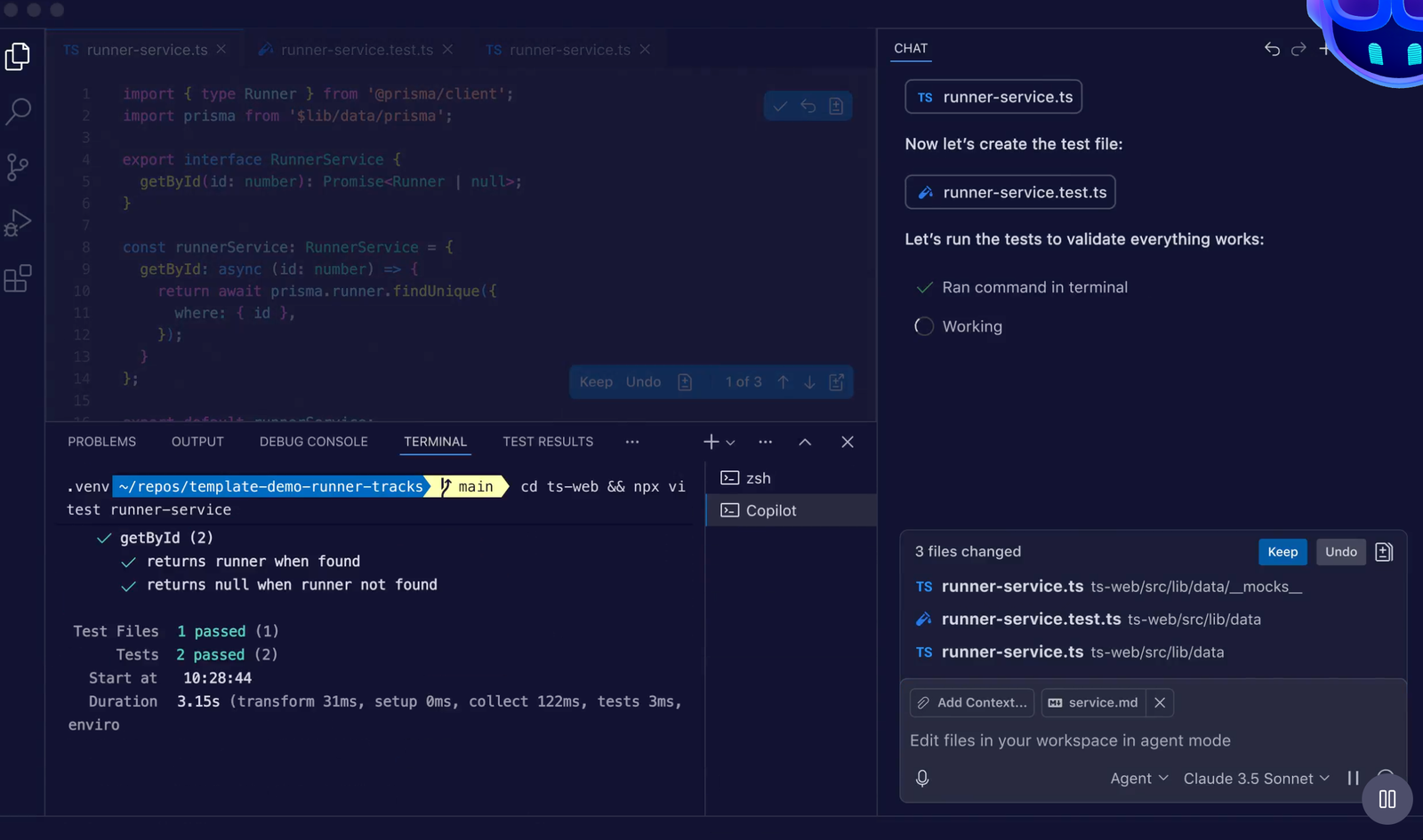
Instead of requiring a new setup or tool, it works directly inside editors like VS Code and JetBrains. That means most of the interaction happens while you’re already coding, suggestions appear inline, small functions get completed automatically, and repetitive patterns are filled in without breaking flow.
Where Copilot proves its value is in the accumulation of small time savings. Writing boilerplate, handling repetitive API calls, or filling in predictable logic becomes almost automatic. Over the course of a full day, that removes dozens of small interruptions that would normally slow things down.
However, its limitations become more noticeable when tasks get complex. For multi-file changes, architectural decisions, or anything that requires deeper reasoning, Copilot often needs more guidance or falls short compared to newer AI-first tools.

Another practical consideration is usage at scale. For individual developers, it feels lightweight and efficient. But in team environments, cost, request limits, and consistency of output can become factors to monitor.
Overall, Copilot works best as a background assistant for everyday coding, rather than a tool that takes over larger parts of the workflow.
Pros
- Works inside the IDE that most developers already use
- Strong for completions, chat, and code review
- Good fit for solo developers and teams
- Broad model support and mature ecosystem
Cons
- Some features depend on premium request usage
- Not always the best choice for very large, multi-step tasks
- Can feel expensive once teams scale up
Cursor
Cursor feels very different from traditional coding assistants because it’s built around the idea that AI should actively modify code—not just suggest it.
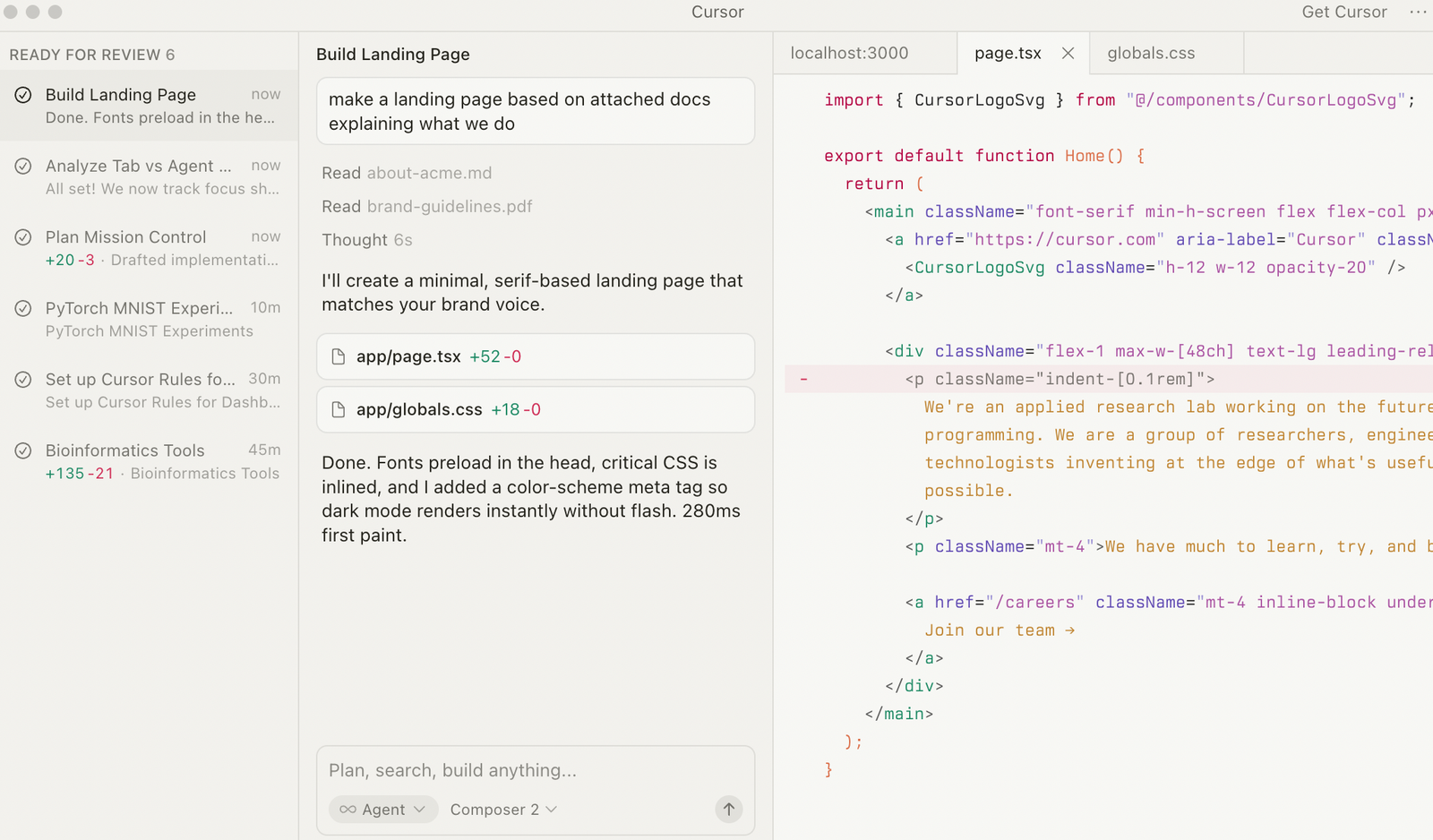
Instead of only completing lines, Cursor can work across files, refactor sections, and apply broader changes when prompted. This makes it especially useful when you’re working on existing codebases rather than writing everything from scratch.
In real use, this shows up during refactors or feature updates. You can ask it to change logic across multiple files, adjust structure, or clean up messy code, and it will attempt to do that in one go. This saves time, but more importantly, it reduces the mental load of tracking changes manually.
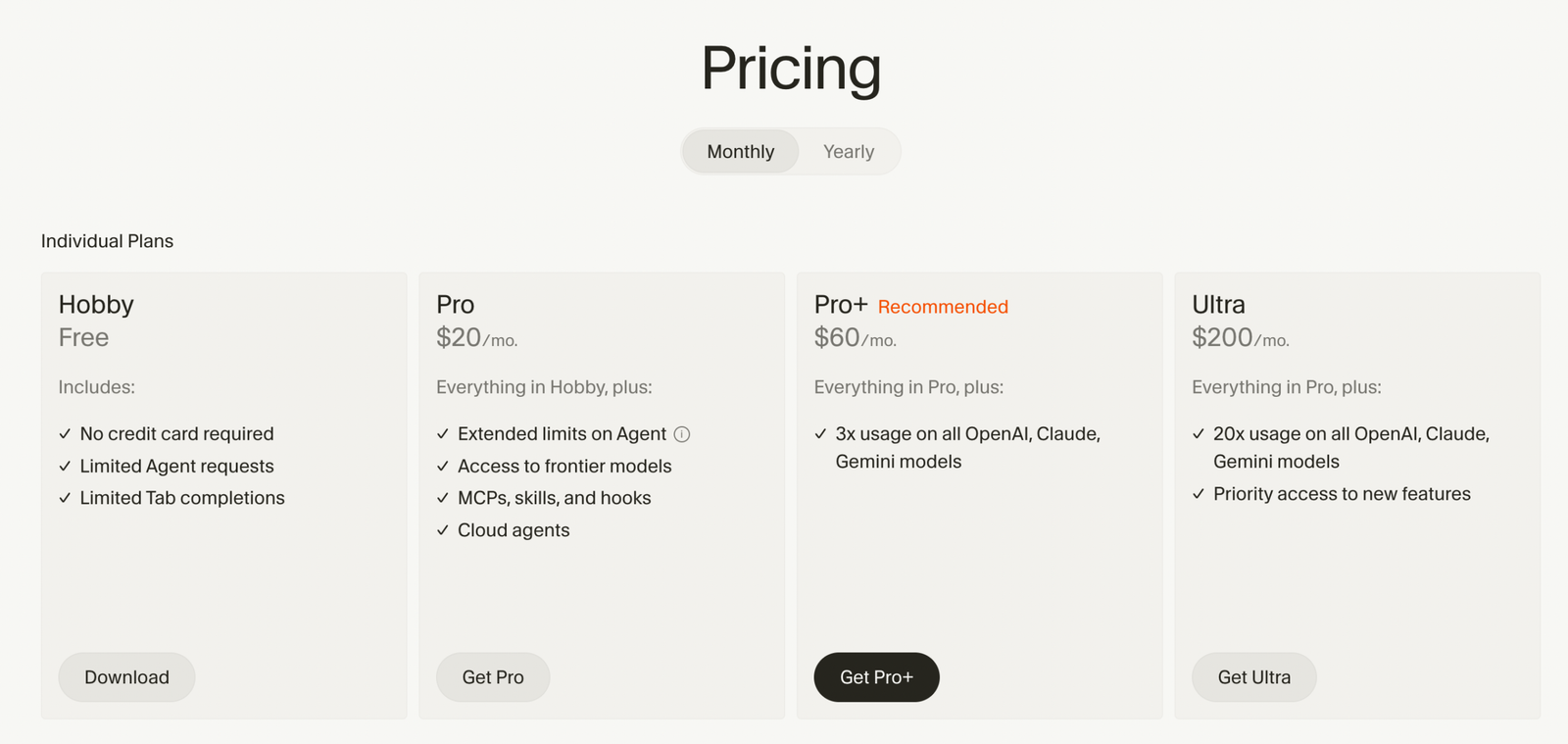
Where Cursor stands out is context handling. It understands more of your codebase at once compared to simpler tools, which makes it better suited for larger tasks.
However, it’s not always necessary. For simple autocomplete or small edits, it can feel heavier than needed. There’s also a learning curve in trusting and guiding it properly, and the cost can increase if you rely on it heavily.
Pros
- Strong AI-native editor experience
- Useful for multi-file edits and refactors
- Good for fast iteration on real codebases
- Clear fit for developers who want an AI-first workflow
Cons
- Higher cost than simple assistants
- Can be more tools than some users need
- Requires some habit change if you are used to a classic IDE
Windsurf
Windsurf is designed around the idea of “agent-driven coding,” where the tool takes a more active role in building and modifying applications.
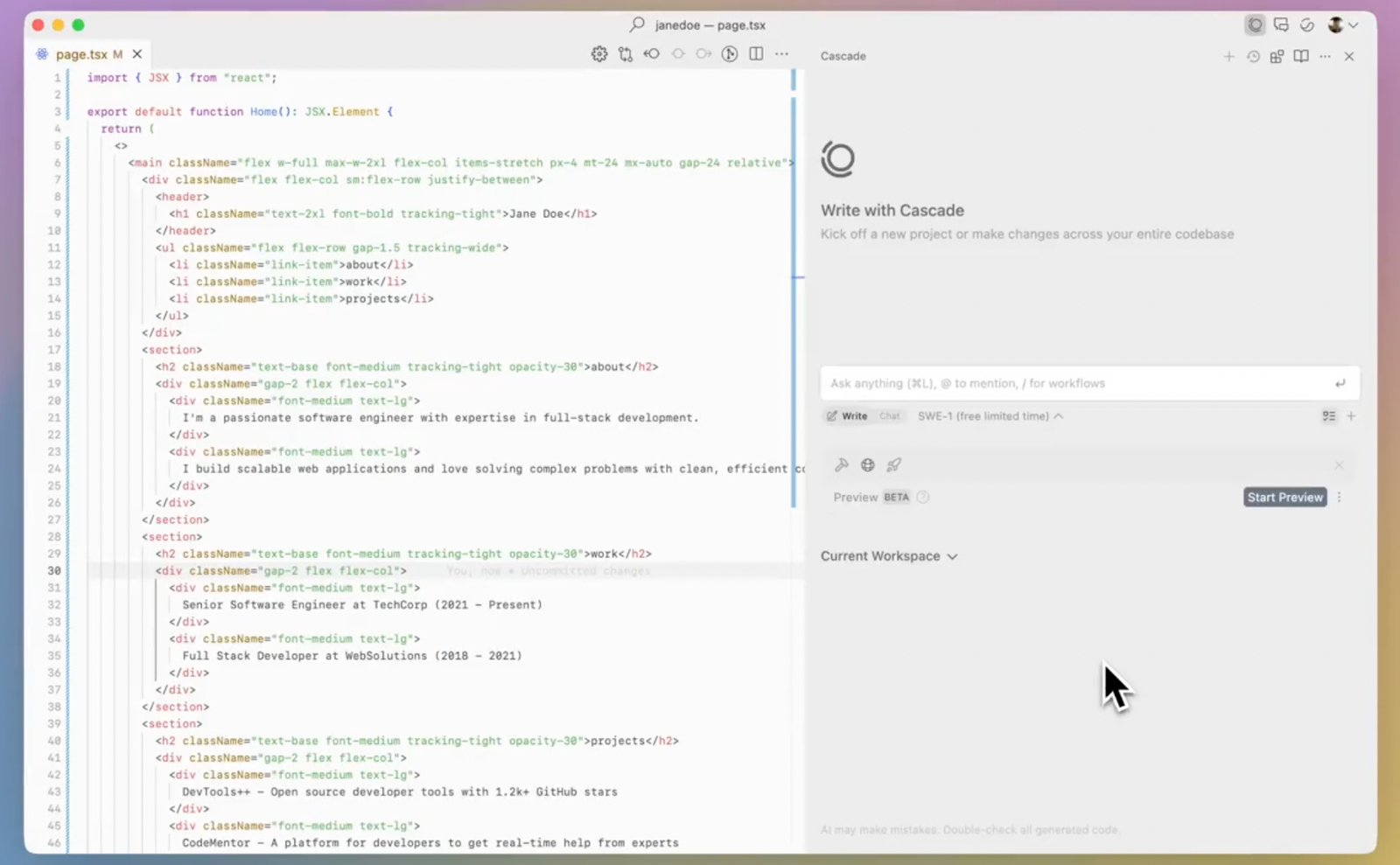
Instead of just assisting with code snippets, it can help turn a rough idea into a working feature, including previews and deployment steps. This makes it particularly useful for rapid prototyping and solo development.
In practice, this means you can describe what you want to build, and Windsurf handles a large part of the execution—generating code, organizing structure, and even helping you see the result quickly. This reduces the need to manually connect multiple tools during early development stages.
Where it stands out is the flow. It tries to keep you moving forward instead of getting stuck in small implementation details.
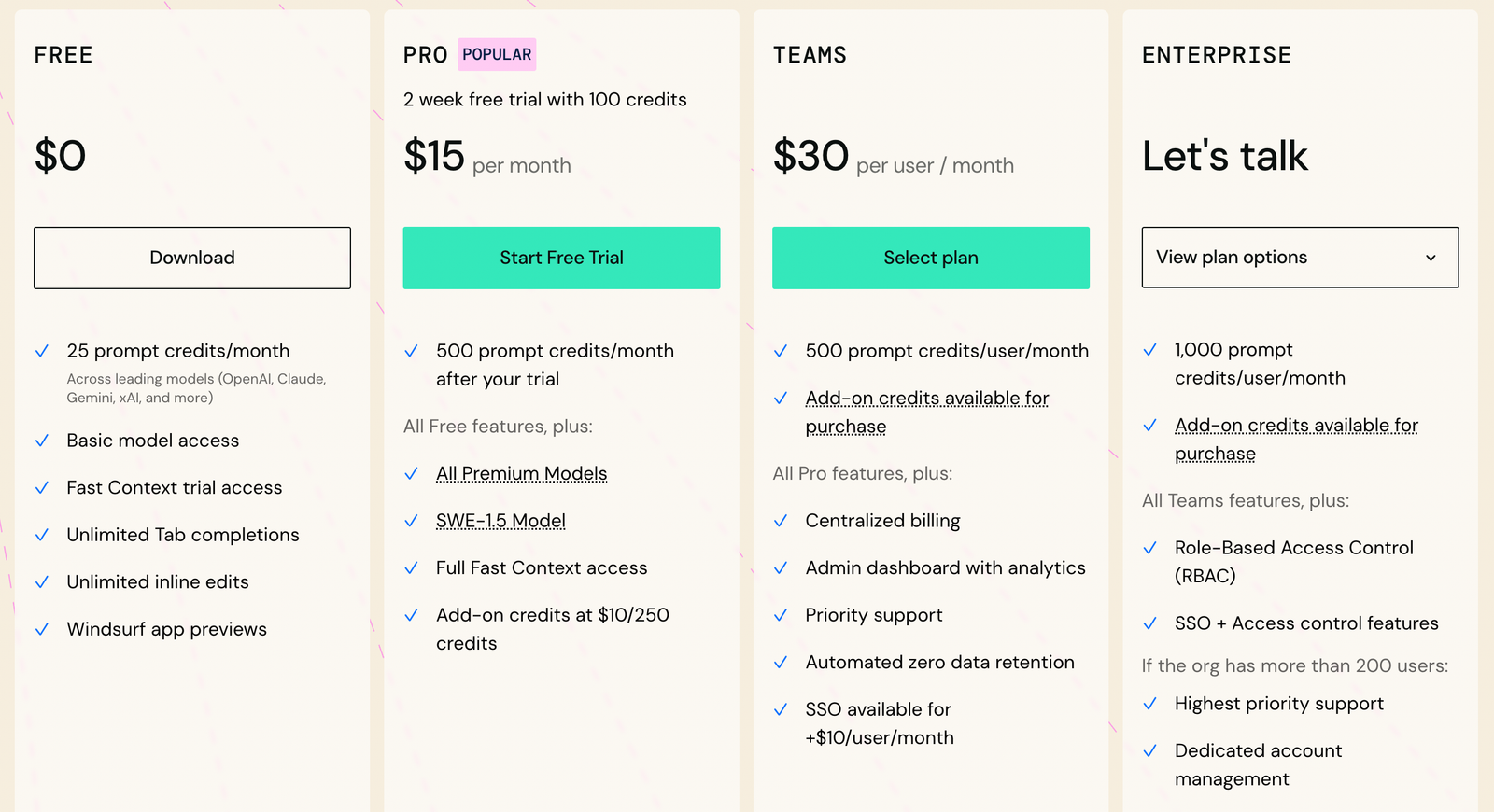
The tradeoff is control. For developers who prefer to manage every part of the code manually, this approach can feel a bit too guided. Pricing based on usage credits also means you need to be mindful of how often you rely on higher-end features.
Pros
- Good for agent-driven coding workflows
- Useful for building and previewing apps quickly
- Works well for solo developers and small teams
- Clear, modern product experience
Cons
- The credit system adds another thing to watch
- Not the lightest option for simple autocomplete use
- Best value depends on how often you use premium models
Claude Code
Claude Code is best suited for developers who prefer working in the terminal and want deeper, more thoughtful assistance rather than quick suggestions.
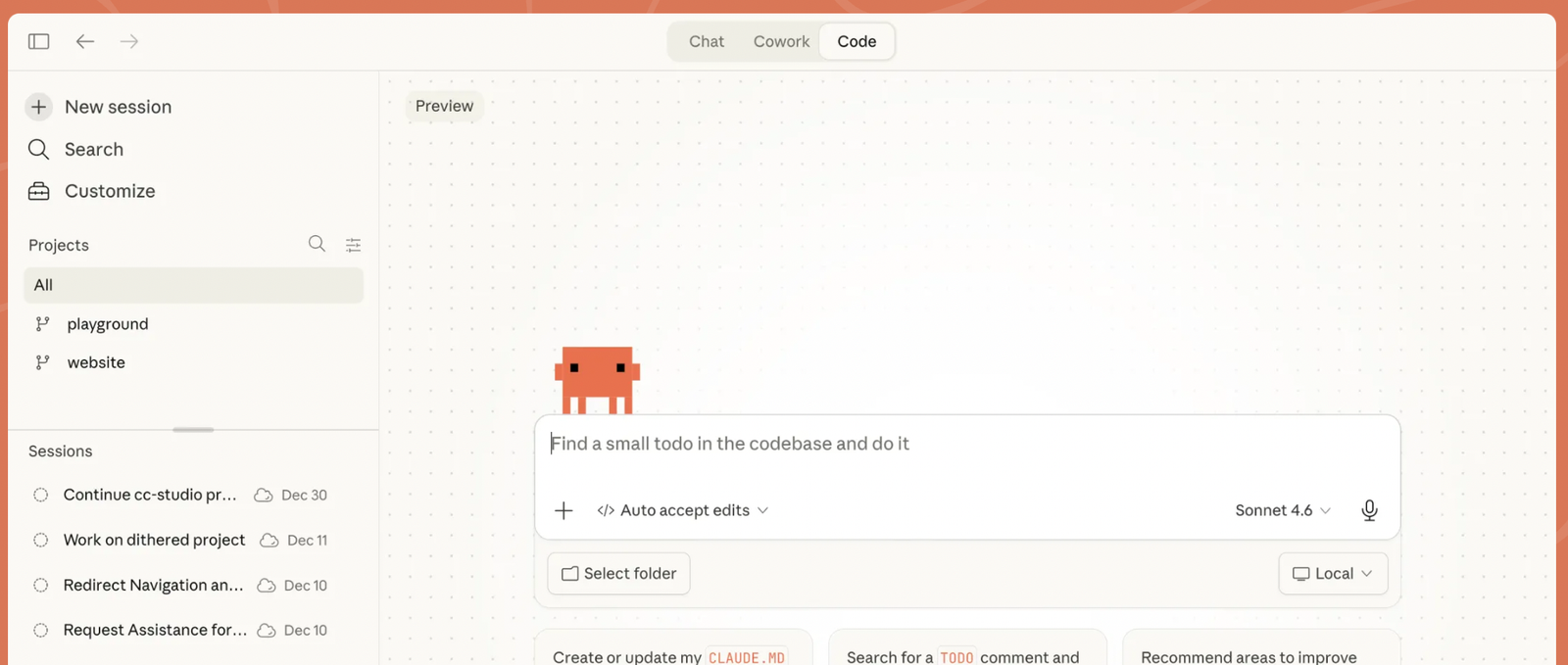
It’s particularly strong when dealing with multi-step tasks, things like debugging, refactoring, or understanding unfamiliar parts of a codebase. Instead of just completing lines, it helps reason through problems.
In real workflows, this becomes useful when you’re tackling something slightly complex. For example, modifying logic across multiple files or debugging an issue where the cause isn’t obvious. It can guide you through the process rather than just giving a quick fix.

Where it stands out is reasoning and context depth. It handles larger chunks of information better than many lightweight tools, which makes it more reliable for involved tasks. However, the terminal-first approach is not for everyone. If you prefer visual interfaces or quick inline edits, it may feel less convenient.
Pros
- Strong for deeper multi-step coding tasks
- Works well in the terminal
- Good fit for refactors and debugging sessions
- Useful when you want reasoning, not just autocomplete
Cons
- Less friendly if you do not like terminal workflows
- Can be overkill for tiny edits
- Usage costs can matter for heavy daily work
JetBrains AI Assistant
JetBrains AI Assistant is designed for developers who already work inside JetBrains IDEs and want AI features integrated into that environment.
Instead of introducing a new tool, it adds capabilities like code generation, explanations, and refactoring directly into the IDE. This makes it easy to adopt if you’re already familiar with JetBrains workflows.
In daily use, it helps with tasks like understanding unfamiliar code, generating snippets, and cleaning up existing logic. It doesn’t try to change how you work—it enhances what you’re already doing.
Where it stands out is integration. Because it’s built into the IDE, it feels more natural compared to tools that sit outside or require switching context. The limitation is also obvious. Its value is tied to the JetBrains ecosystem. If you’re not using those IDEs, it doesn’t offer much advantage.
Pros
- Best for JetBrains IDE users
- Useful for editing, refactoring, and explanations
- Feels integrated with the IDE workflow
- Good for developers who want a native experience
Cons
- Not ideal if you do not use JetBrains tools
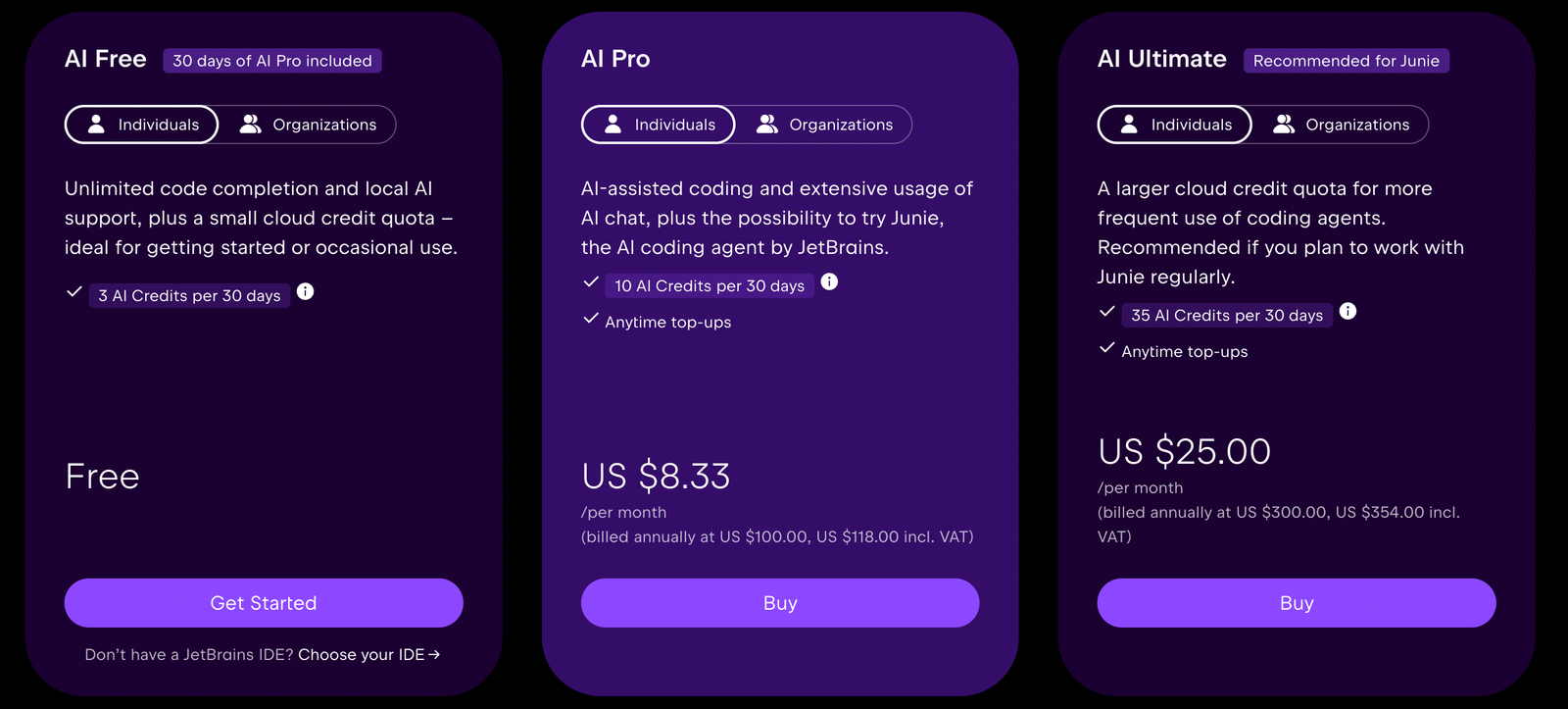
- Cloud quotas can matter on some plans
- Less flexible than editor-agnostic options
Amazon Q Developer
Amazon Q Developer is most useful when development is closely tied to AWS services.
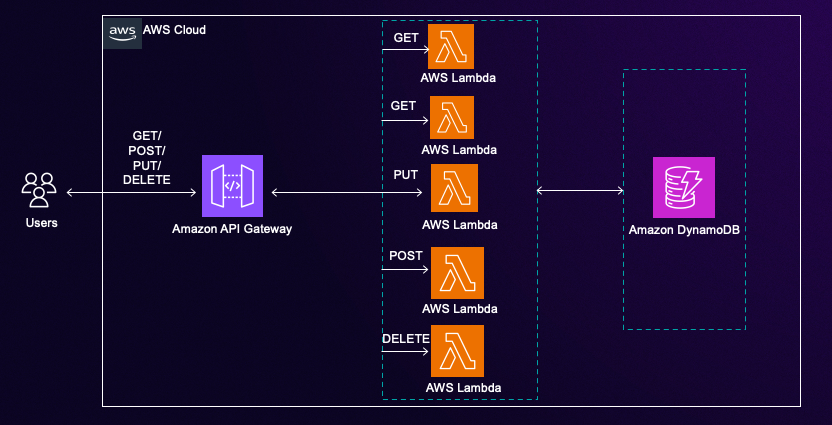
It goes beyond coding assistance and helps with cloud-related tasks, which makes it valuable for teams working on infrastructure-heavy applications.
In real use, this shows up when switching between writing code and managing cloud resources. Instead of context switching, you can get help within the same flow—whether it’s generating code, understanding AWS services, or working in the CLI.
Where it stands out is integration with AWS. For teams already using AWS extensively, this can save a lot of time. However, if your work isn’t centered around AWS, much of its value disappears. It’s not as compelling as a general-purpose coding assistant in those cases.
Pros
- Strong fit for AWS-heavy teams
- Useful in the IDE, CLI, and AWS console
- Practical for coding and cloud workflow support
- Has a usable free tier
Cons
- Best value depends on AWS usage
- Some limits still apply on free and pro tiers
- Less attractive for developers outside the AWS ecosystem
Gemini Code Assist
Gemini Code Assist is positioned as a coding tool that fits into Google’s ecosystem, especially for teams working with Google Cloud. It helps with generating code, understanding files, and assisting in development workflows that are connected to cloud services.
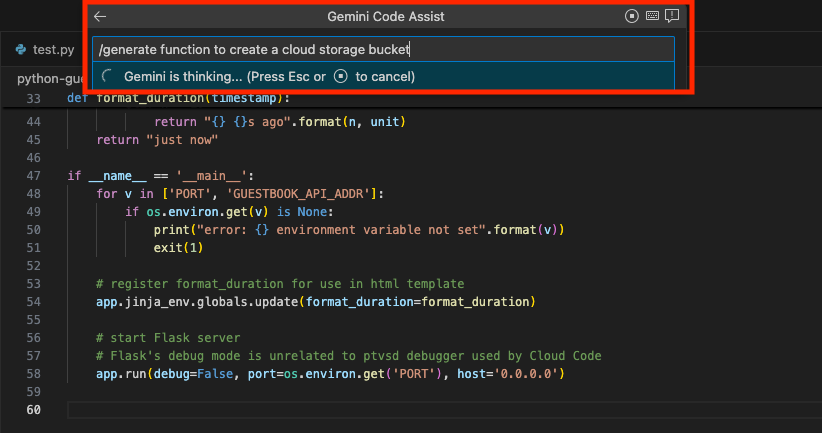
In practice, it’s useful when working across code and cloud environments, especially if your projects already rely on Google tools. It provides assistance that feels consistent across those systems.
Where it stands out is in structured environments, teams that need integration, governance, and support across multiple layers. The limitation is similar to AWS tools. If your workflow doesn’t involve Google Cloud, the benefit becomes less noticeable.
Pros
- Good fit for Google Cloud users
- Useful for code generation and explanation
- Enterprise options make team adoption easier
- Helpful for cloud-related development work
Cons
- Best when you already use Google tools
- Value depends on your cloud setup
- Not the most universal choice on this list
Replit
Replit is built for speed and simplicity, especially when you want to go from idea to working code quickly. Because everything runs in the browser, there’s no setup required. You can start coding immediately, run your project, and even deploy it without leaving the platform.
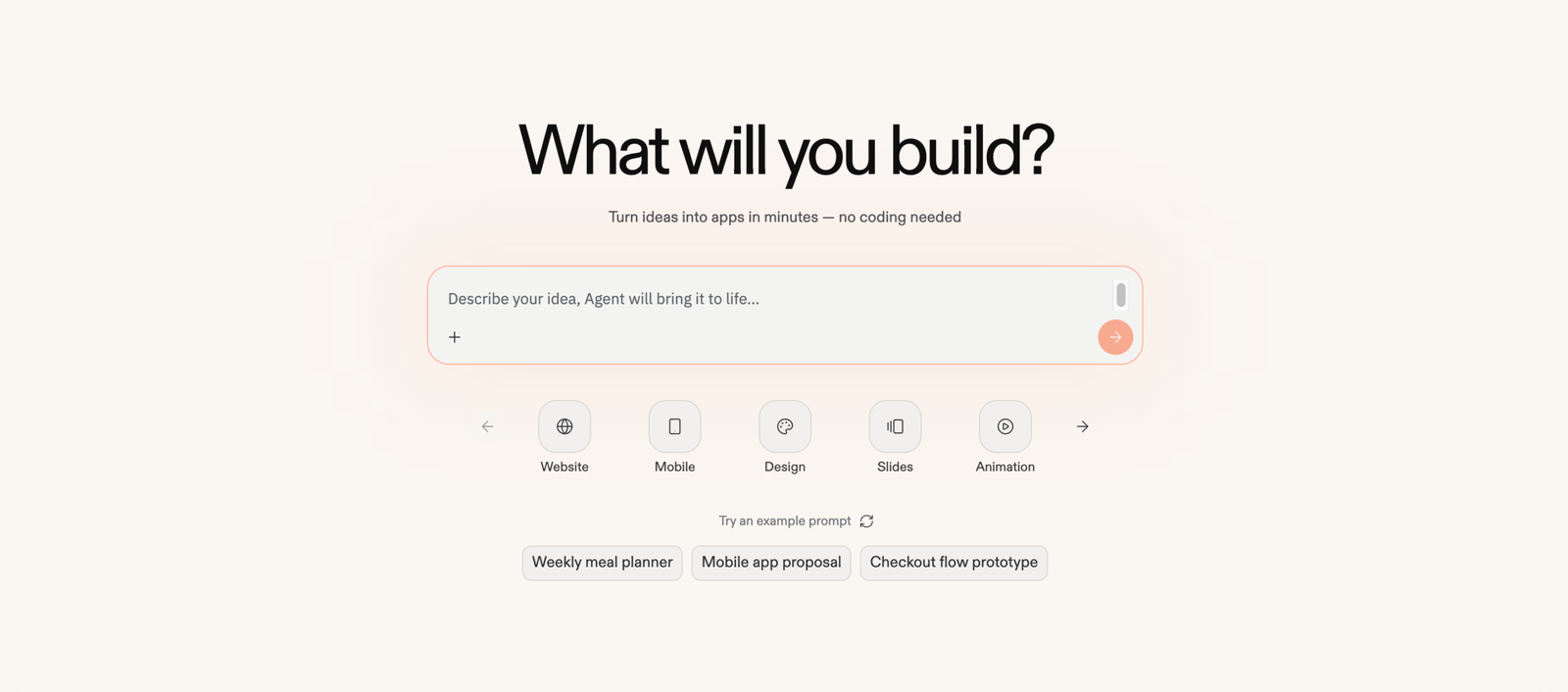
In real usage, this makes it ideal for prototypes, experiments, and small applications. It removes the friction of setting up environments, which is often what slows early development.
Where it stands out is convenience. For quick builds, it’s one of the fastest ways to get something working. However, for larger or more complex projects, it can feel limiting compared to a full local development setup.
Pros
- Very fast for prototypes and small apps
- Browser-based workflow reduces setup time
- Good for learning and early-stage projects
- Useful when you want to build and deploy quickly
Cons
- Less suited to large production codebases
- Can feel restrictive for advanced developers
- Best value is tied to how much you deploy and build there
Tabnine
Tabnine is focused on giving teams more control over how AI interacts with their code. It’s designed with privacy, governance, and deployment flexibility in mind, which makes it more suitable for organizations than individual developers.
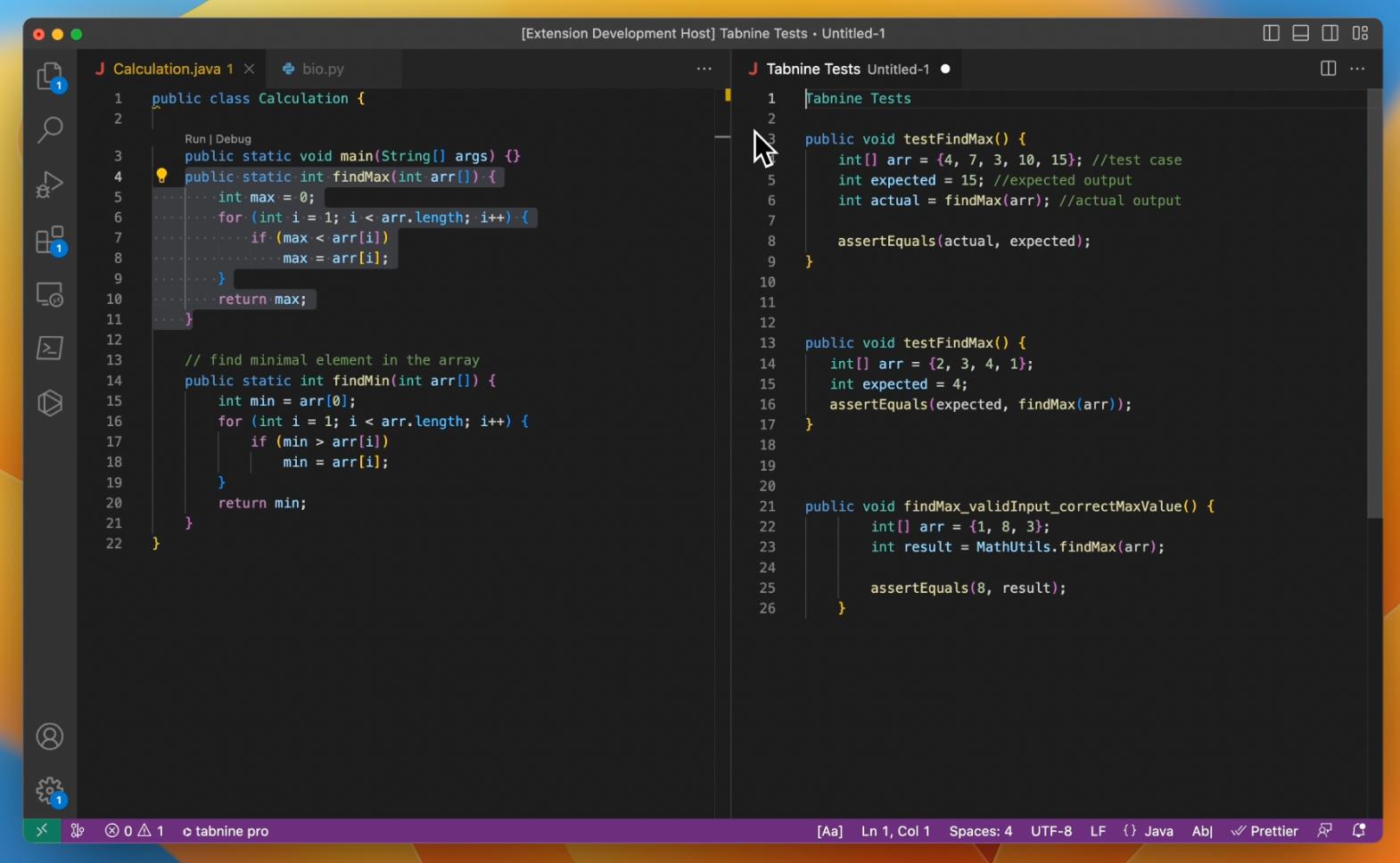
In real use, this matters when teams need to follow strict policies or manage how AI is used internally. Tabnine fits into those workflows without compromising control.
Where it stands out is in enterprise readiness. It’s not just about coding assistance, it’s about how that assistance is managed. The downside is that it’s less exciting for individual developers who just want a fast, lightweight tool.
Pros
- Strong for enterprise and team governance
- Useful for completions, chat, and agents
- Good deployment flexibility
- Built with organization-level control in mind
Cons
- More enterprise-oriented than consumer-friendly
- Can be heavier than simpler tools
- Less appealing if you only need basic personal coding help
Continue
Continue is an open-source option that offers developers greater flexibility than closed, commercial tools. It integrates with IDEs and enables you to build custom workflows, select models, and tailor the experience to your needs.
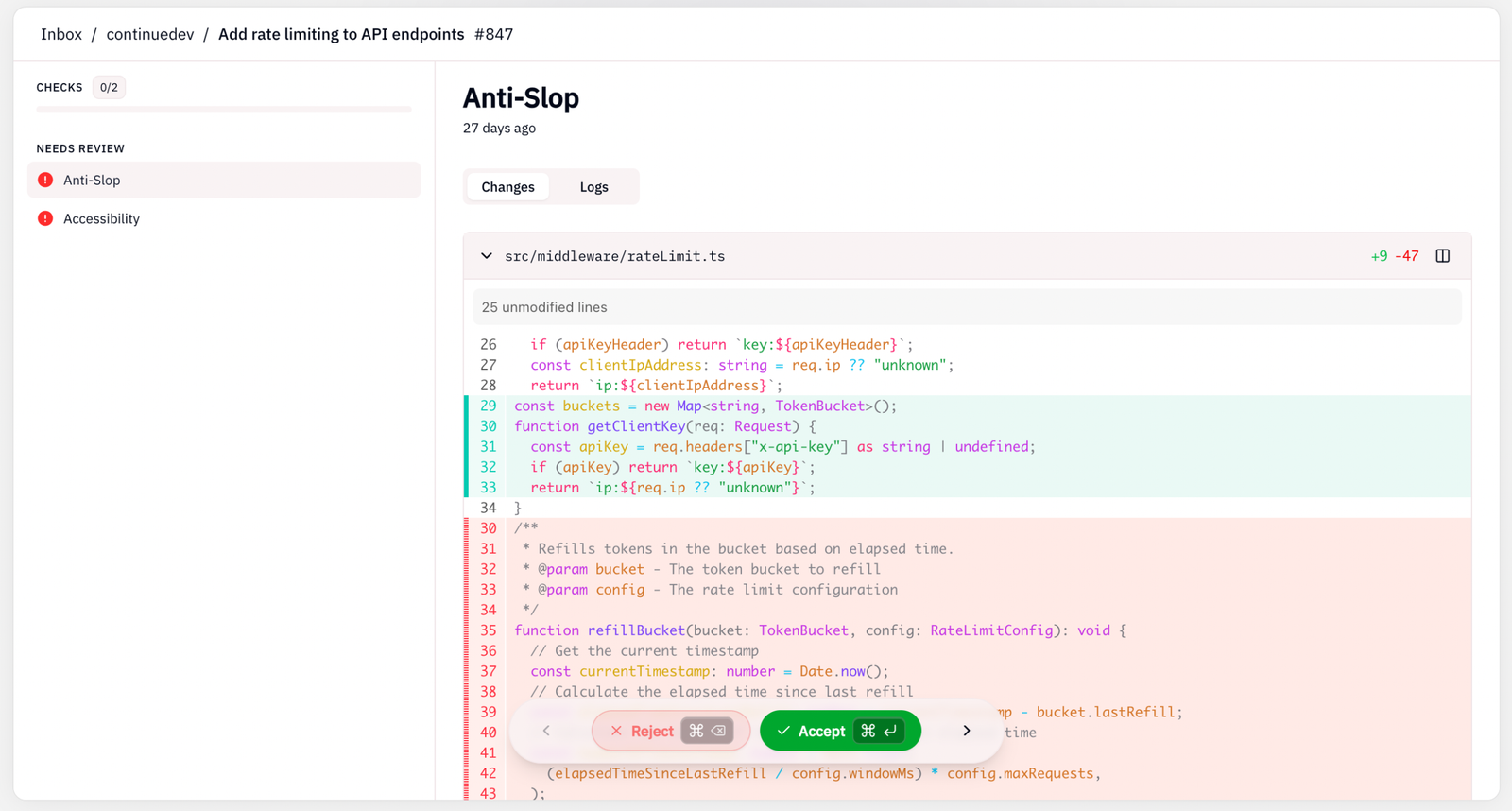
In practice, this is useful for teams that want control over their tooling and don’t want to rely on a single vendor. It allows more experimentation and customization. Where it stands out is flexibility. You’re not locked into a predefined system.
The tradeoff is effort. It requires setup, configuration, and ongoing tuning to get the best experience.
Pros
- Open-source and flexible
- Works with your own models and setup
- Good for teams that want customization
- Fits both VS Code and JetBrains workflows
Cons
- Requires more setup than plug-and-play tools
- Best experience depends on your own configuration
- Less polished than some commercial alternatives
Comparison Table
| Tool | Best For | Key Feature | Pricing |
|---|---|---|---|
| GitHub Copilot | Everyday IDE coding | Inline help, chat, and code review | Free; Pro $10/mo; Pro+ $39/mo |
| Cursor | AI-first editor workflows | Multi-file editing and agentic changes | Free; Pro $20/mo; Teams $40/user/mo |
| Windsurf | Agent-driven app building | Prompt credits and integrated previews | Free; Pro $15/mo; Teams $30/user/mo |
| Claude Code | Terminal-based coding | Deep reasoning for multi-step tasks | Included in Pro from $20/mo; Max from $100/mo |
| JetBrains AI Assistant | JetBrains users | Native IDE integration | Free tier; paid AI tiers available |
| Amazon Q Developer | AWS-heavy teams | IDE, CLI, and AWS console support | Free tier; Pro $19/mo per user |
| Gemini Code Assist | Google Cloud users | Cloud-backed coding assistance | Free individual tier; enterprise licensing available |
| Replit | Fast prototyping | Browser-based build and deploy flow | Free; Core $20/mo billed annually; Teams $35/user/mo billed annually |
| Tabnine | Enterprise teams | Governance and deployment flexibility | From $39/user/mo annual |
| Continue | Custom open-source setups | Flexible assistants and model choice | Free Solo; Team $10/developer/mo; Enterprise custom |
Who Should Use Which Tool
The right AI coding tool depends less on features and more on how you actually write, debug, and manage code day to day. Most of these tools overlap, but the difference shows up in how they fit into your workflow.
- GitHub Copilot → Best for everyday coding inside an IDE
Choose this if you want faster coding without changing your setup. It’s ideal for handling repetitive tasks like boilerplate, small functions, and quick fixes while staying inside tools like VS Code or JetBrains. - Cursor → Best for multi-file edits and deeper code changes
Works better when you’re modifying existing codebases, refactoring logic, or making changes across files. It’s more powerful than simple autocomplete, but also requires a shift in how you work. - Windsurf → Best for guided, end-to-end building
A strong option for prototyping or solo development where you want the tool to handle more of the process—from idea to working feature—without managing every step manually. - Claude Code → Best for terminal users and complex tasks
Fits developers who prefer working in the terminal and need help with debugging, refactoring, or multi-step changes. More focused on reasoning than quick suggestions. - JetBrains AI Assistant → Best for JetBrains IDE users
If you already use IntelliJ, PyCharm, or WebStorm, this is the most natural fit. It enhances your existing workflow without forcing you to switch tools. - Amazon Q Developer → Best for AWS-heavy workflows
Makes sense if your development is closely tied to AWS. It helps bridge the gap between code and cloud tasks, especially in infrastructure-heavy projects. - Gemini Code Assist → Best for Google Cloud teams
A better fit for teams already working within Google Cloud. Its value comes from integration rather than standalone coding power. - Replit → Best for fast prototyping and learning
Ideal when you want to build and run code quickly without setting up a local environment. Great for small projects, experiments, and early-stage ideas. - Tabnine → Best for teams needing control and governance
Designed for organizations that care about security, policy control, and how AI interacts with codebases. Less about speed, more about controlled usage. - Continue → Best for custom, open-source workflows
Useful if you want flexibility and control over your setup. It requires more effort but allows you to build a tailored AI coding environment.
Final Verdict
AI apps for coding are no longer about writing code faster; they’re about reducing the constant friction that slows development down.
The biggest shift is not in what they can do, but in how they fit into everyday work. The most useful tools are the ones that stay out of the way while handling repetitive tasks, filling small gaps, and keeping momentum intact.
What becomes clear over time is that raw capability matters less than consistency. A tool that saves a few seconds on every interaction ends up having a much bigger impact than one that only helps occasionally on complex tasks.
At this point, the advantage comes from integrating one tool deeply into your workflow rather than constantly switching between options. That’s where the real time savings and productivity gains actually show up.
